Content Publisher MCP Server
The Content Publisher Model Context Protocol (MCP) server enables Agentic Application and AI assistants like Claude, Claude Code and Cursor to interact directly with Content Publisher. It lets these applications perform tasks on your Content Publisher projects on your behalf, following your instructions in natural language. It can help facilitate, accelerate and streamline Content Operation processes.
The MCP Server exposes most of Content Publisher functionality to a MCP Client, based on the user credentials. The goal is to cover the whole scope of tasks a user could do with a human user interface or with our open API. Typically:
- Connect and manage documents - Connect Google Docs to collections, disconnect documents, and transfer ownership.
- Publish content - Preview, publish, unpublish, and manage approval workflows. Define or update all documents metadata. Unpublish and disconnect content.
- Manage your document collections - Create collections, manage collaborators, administrators and access control, administer webhooks as well as all other collection configurations options.
- Work with content modeling - Manage metadata schemas.
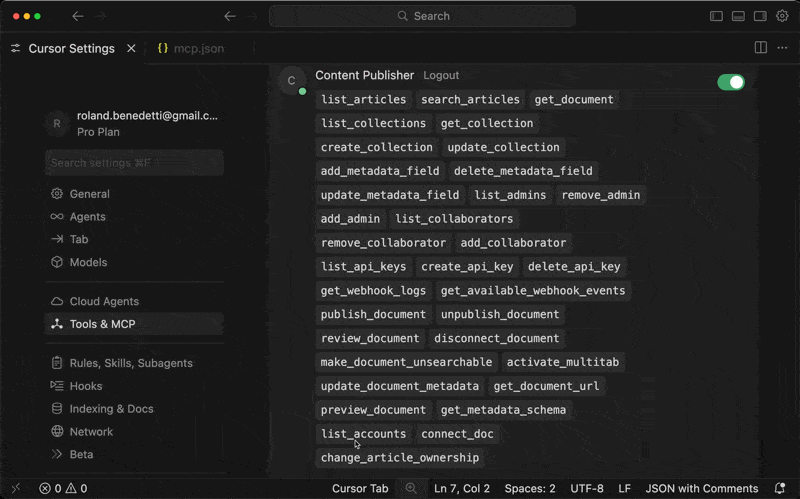
Like all MCP servers, capabilities are exposed as tools by the MCP server and you can very easily get a clear understanding of the exhaustive list of tools available by simply asking your AI application, or possibly by looking at its connector settings.

The MCP Server is hosted at https://mcp.content.pantheon.io This remote deployment model ensures your AI assistants always have access to the latest tools and features, without the friction of running a local server or manual updates.
The MCP Server does not introduce a different or parallel authentication mechanism, or store local credentials. It relies entirely on your existing Content Publisher account. To grant access, you simply authenticate with your primary credentials and authorize the AI assistant to act on your behalf.
Once connected, the MCP Server exposes Content Publisher APIs as MCP tools for your AI application. The MCP Server is bound by your existing user permissions. If your account is not entitled to perform a specific task, such as approving a document for publishing, your AI assistant will be unable to execute that action, even if this action is visible as a tool.
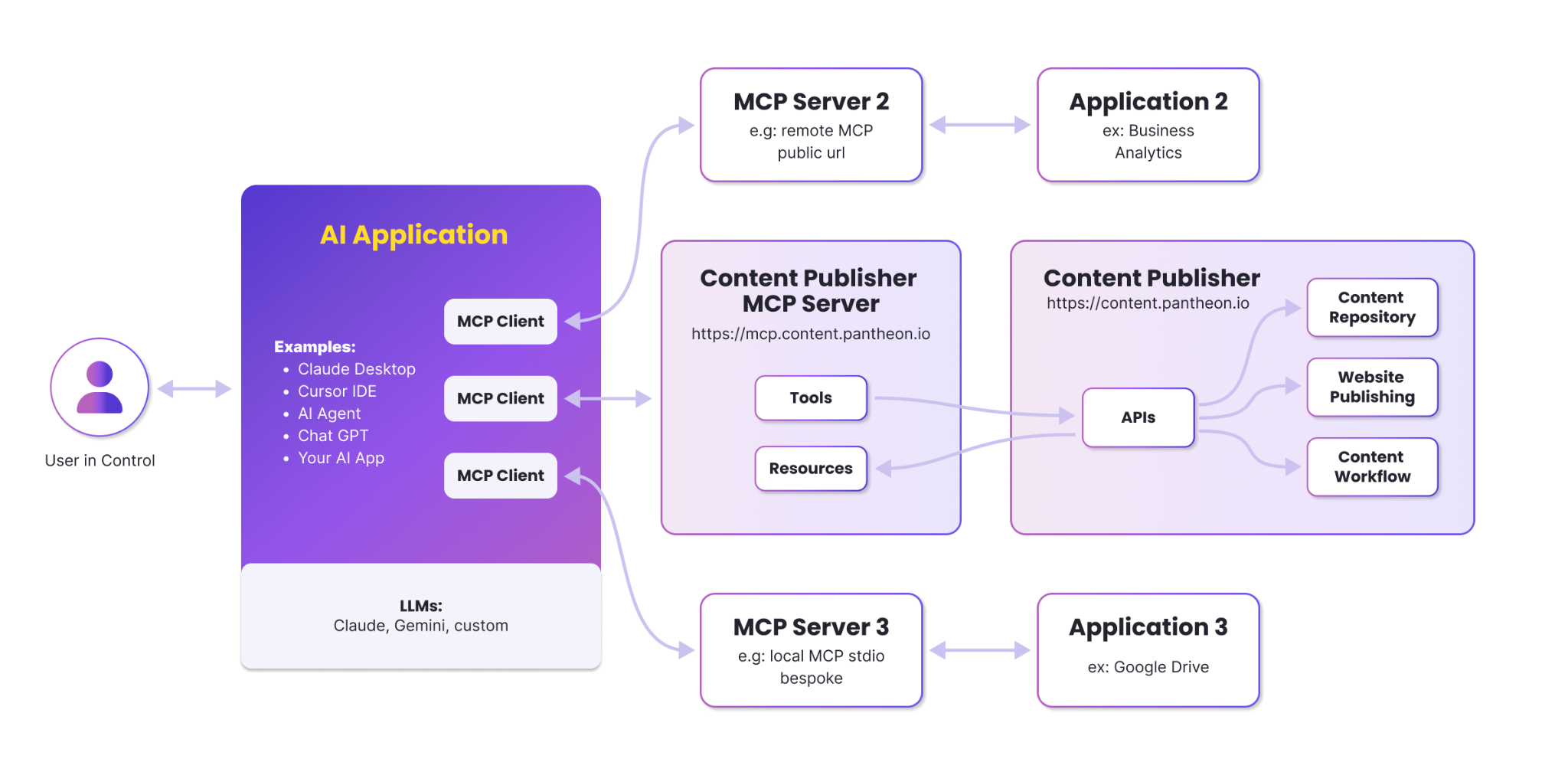
The installation process can be done in only a few minutes. It might vary depending on the MCP client your AI application uses, but always follows the steps below:
- Make sure you have a Content Publisher user account and at least one document collection configured on your account.
- Configure your AI application that will act as an MCP client: add the MCP server to Claude, Cursor, Claude Desktop or any MCP application supporting the current MCP protocol using the remote http communication. It should mostly require you to simply add the URL https://mcp.content.pantheon.io in the right settings in your application (either a json file or a self-described web UI).
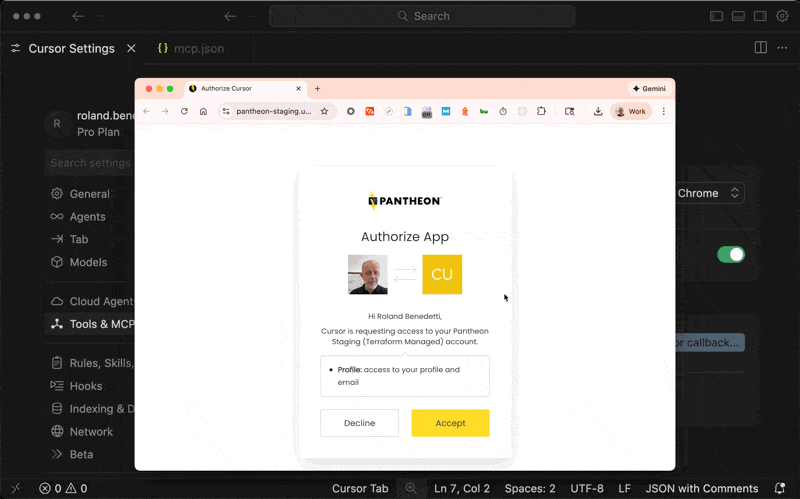
- Authorize the AI application: the AI app will redirect you to a screen where you authorize the application.
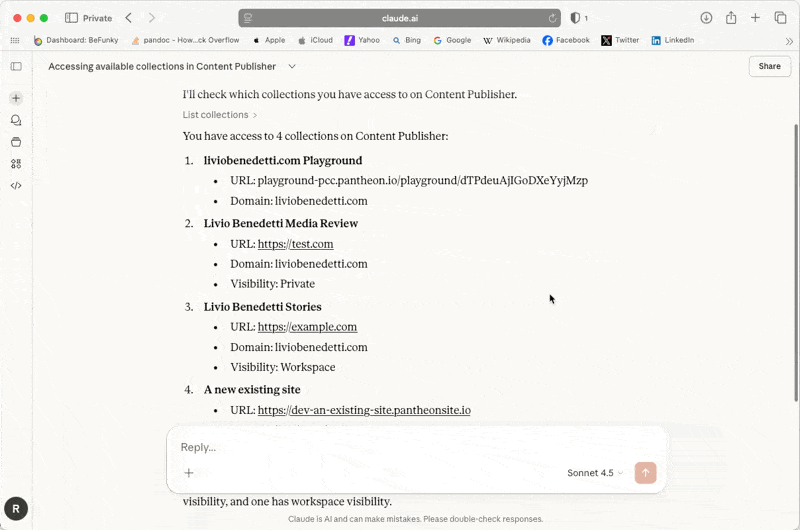
- Start a new conversation with your AI application and start having it working with your content. Suggestion to check the setup worked, asked “can you please list all my content collection in content publisher” to verify you are well connected.
We have initially tested the Content Publisher MCP server with Claude and Cursor. See below the setup process for these as examples.
1. Click on your user account at the bottom left of Claude.
2. Access the Settings menu and then the Connectors sub menu.
3. Click add a connector, enter the URL for Content Publisher and save.
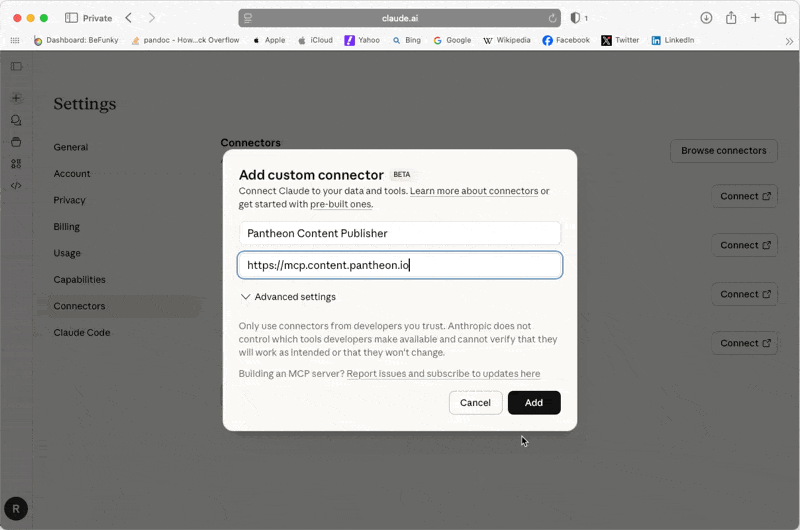
Note: if you use Claude Enterprise, this might have to be done by your administrator, the Connector would then be available in the Browse Connector section.
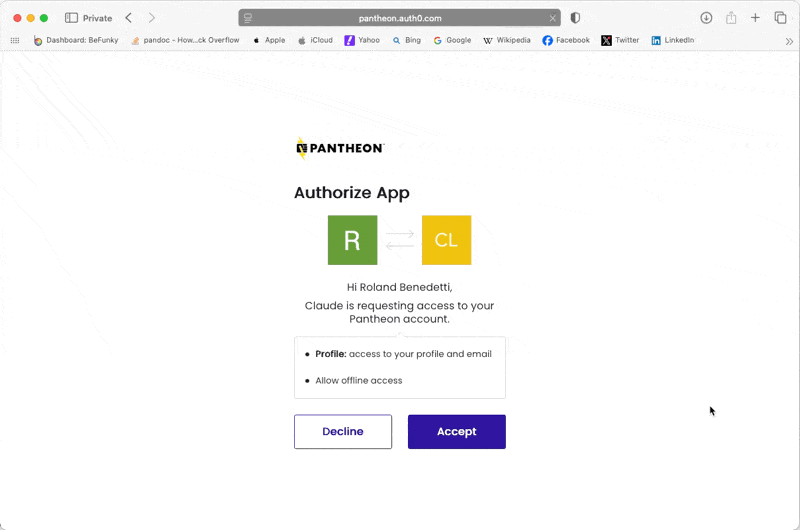
4. Authorize Claude to use the Pantheon MCP Server.
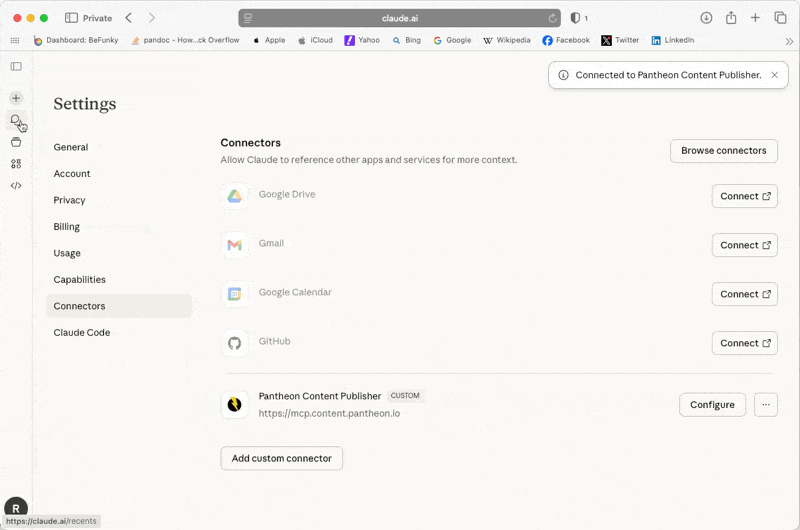
5. You should now see Pantheon Content Publisher in the list of Claude Connectors.
6. You can test to see that it’s working by asking Claude about its Content Publisher capabilities.
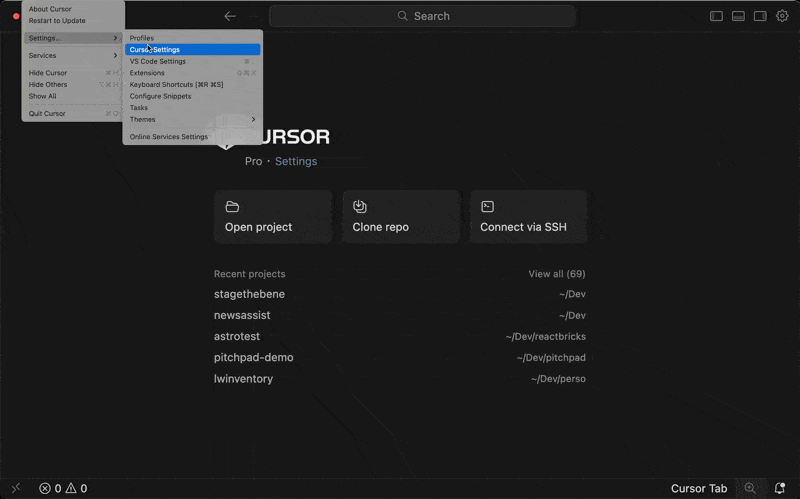
1. In cursor main menu, go to Cursor and then Cursor Settings
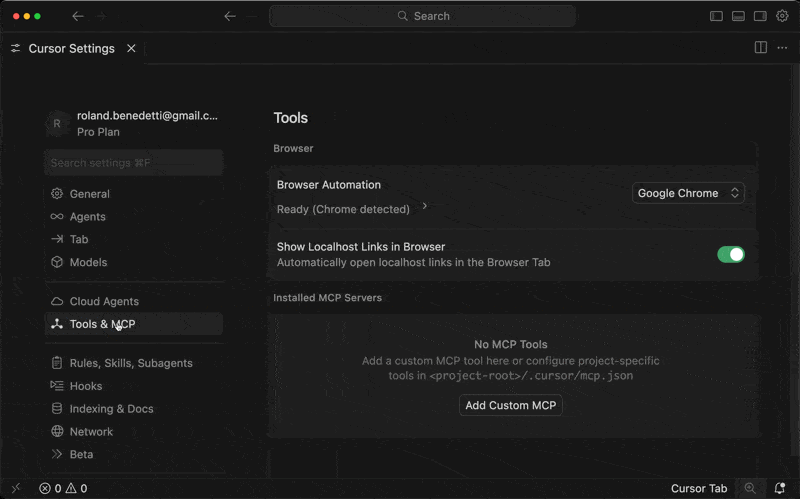
2. Click on Tools & MCP.
3. Click Add Custom MCP (if you do not have any MCP Servers installed) or New MCP Server (if you already have at least one).
4. Edit the mcp.json configuration file as below and save.
{
"mcpServers": {
"Content Publisher": {
"url": "https://mcp.content.pantheon.io"
}
}
}
5. Back on the Tools & MCP screen, click Connect to authorize the Pantheon Content Publisher app.
6. You will have a list of capabilities to show that it is working.
For other AI applications, refer to the documentation of the application to make ensure it supports the MCP protocol and for more specific setup instructions.