In 2025, Google released a new powerful feature to Google Docs: tabs. This feature offers a great way to build more structure into a single document by using a tab system. Tabs can be nested to several levels, and they can be many of them (currently limited to 100).
To know more about Google Docs tabs, please visit the “how to use tabs” documentation section from Google.
There can be many use cases for tabs when using Google Docs for publishing to the web. Content Publisher offers a versatile solution to leverage that option or not depending on the needs.
The first thing users would have to do to use tabs with Content Publisher, is to activate the feature for the document collection they are working on. This can be done by Content Publisher administrator.
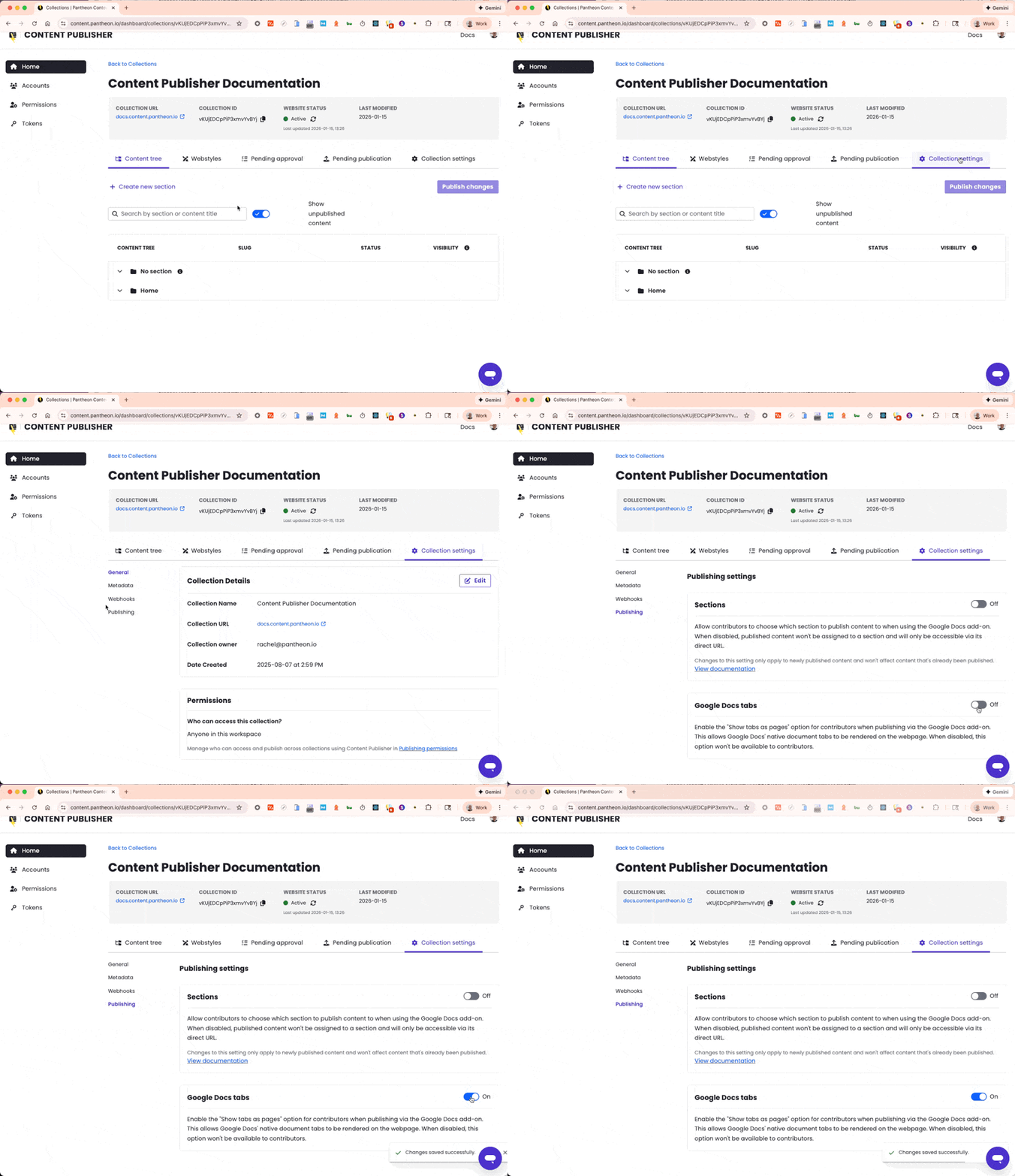
When tabs are activated, contributors can then decide, when publishing a document, to publish it as a “tabbed document” or not. When publishing with “Show tabs as pages” ON, all the tabs are delivered. When publishing with “Show tabs as pages” OFF, only the first tab is delivered.

With tab support, we extended the delivery API to provide backward compatibility as well as offer developers all the latitude to develop the solution they want to.
As a result, the delivery API provides client applications with three versions of the content of the document:
Show tabs as pages:

content: | Content from all tabs concatenated as a string or PantheonTree |
resolvedContent: | Content from all tabs in a TabTree |
tabbedContent: | Content from all tabs in a TabTree |
Show tabs as pages:

content: | Content from the first tab as a string or PantheonTree |
resolvedContent: | Content from the first tab as a string or PantheonTree |
tabbedContent: | Content from the first tab in a TabTree |
The tabbedContent mentioned above is an array of TabTree object, these objects contain the tab content.
An example JSON object of a TabTree<T> would be
[
{
"documentTab": "Hello world, this is the 1st tab",
"tabProperties": {
"tabId": "t.0",
"title": "Tab 1",
"index": 0,
"nestingLevel": 0,
"parentTabId": null
},
"childTabs": []
},
{
"documentTab": "The quick brown fox jumps over the lazy dog",
"tabProperties": {
"tabId": "t.tlembaievla6",
"title": "Tab 2",
"index": 1,
"nestingLevel": 0,
"parentTabId": null
},
"childTabs": []
}
]
Typings can be found in the open-source code on Github and imported into your project via either @pantheon-systems/cpub-react-sdk or @pantheon-systems/cpub-core
As, by design, Content Publisher is a decoupled service, the way tabs will be rendered on a website is really depending on the website configuration, code and design itself and depending on the use cases, there might be very different interface design to let the end-user access the tab. Content Publisher, as a decoupled content back-end provides the tab content in a structured way through its interface so that it can be used by the website.
For now the Drupal Module is only using the content field.
Out of the box, all tabs are concatenated as a string or Pantheon Tree. As a result, they are hard to process to build advanced user interfaces beyond concatenating all tabs in one.
For now the Drupal Module is only using the content field.
Out of the box, all tabs are concatenated as a string or Pantheon Tree. As a result, they are hard to process to build advanced user interfaces beyond concatenating all tabs in one.
We have implemented one possible option to present tabs to users in our starter kit. This can be used as an example to implement your own solution on your Next.js project.