Preview and Publish
Click on the Preview & Publish button to access the preview and easily see how content from Microsoft Word will render on your website. The interface will also allow you to see how content renders on social media platforms. Contributors can also update the metadata fields and see the impact on preview.
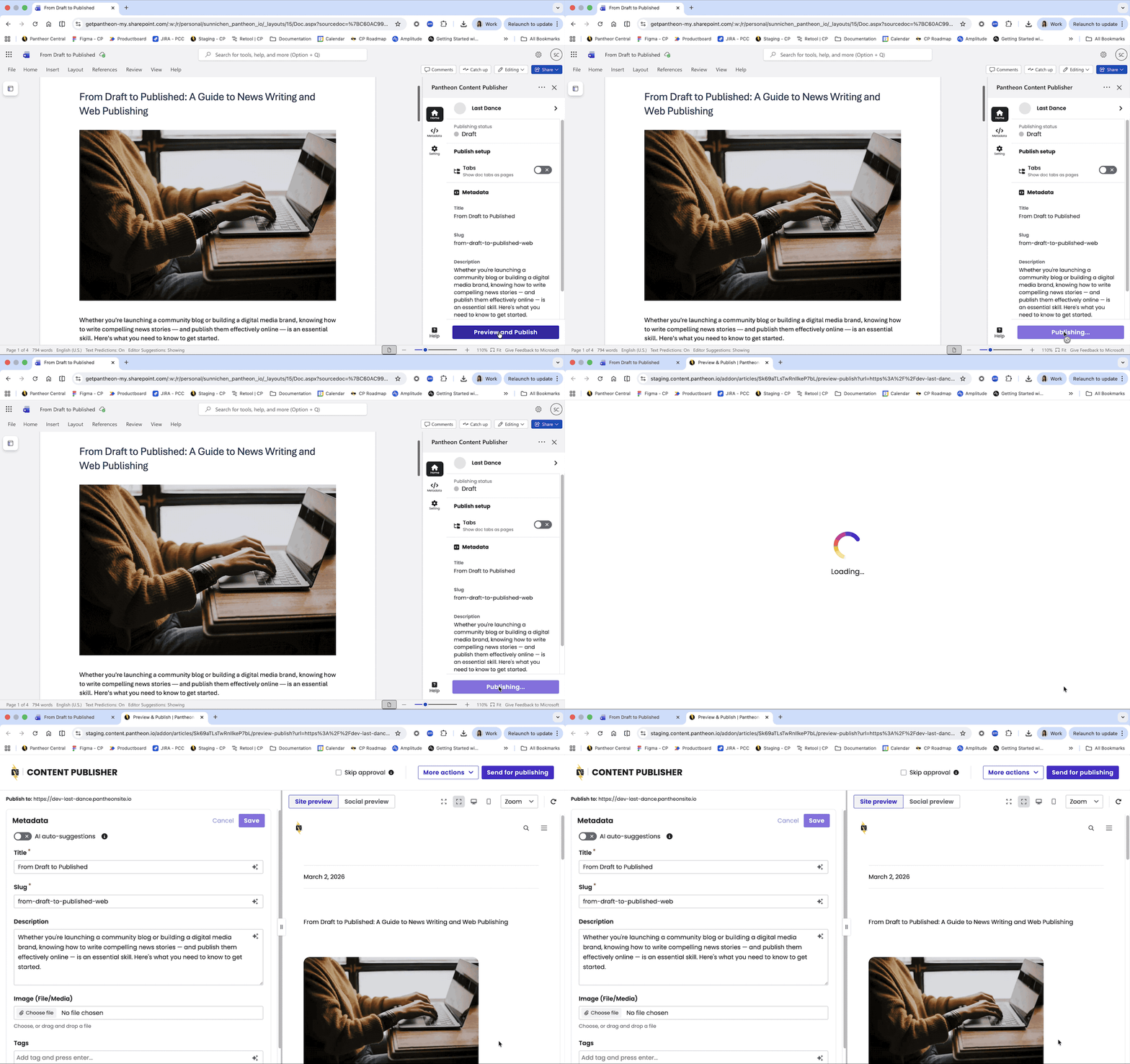
Editing in the Preview Editor on Microsoft Word is not available. Editing must be done in Microsoft Word directly. The preview remains real time and will reflect any changes made in the document.
After clicking on the Preview & Publish button at the bottom of the add-in interface:
- Edit the metadata (these will depend on your collection settings).
- Make sure the preview shows the content to your liking.
- Confirm the publication by hitting “send for publishing”.
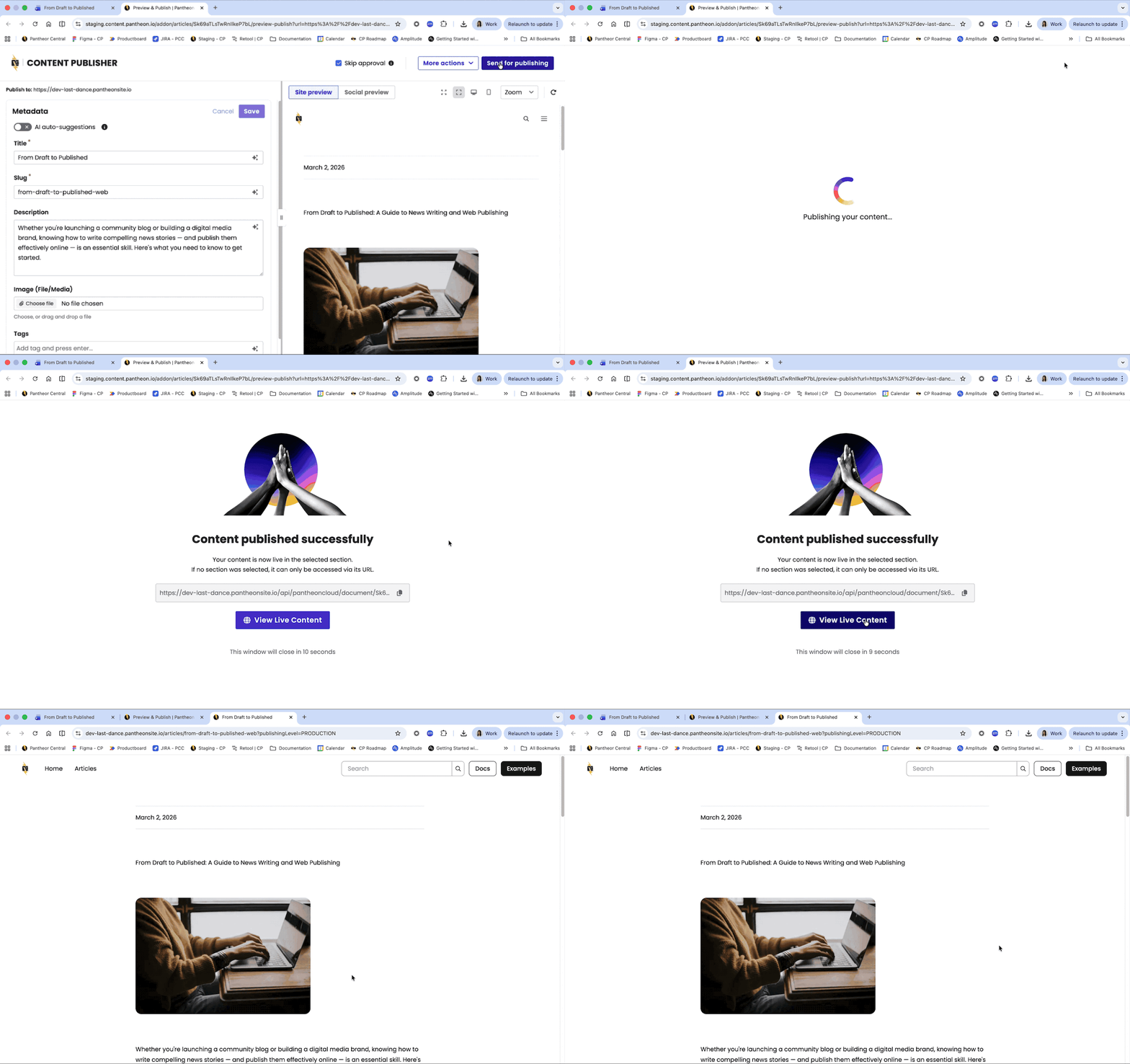
Content Publisher can be configured so that a collection requires approval of content being sent for publishing. This feature is known as the approval workflow.
When the approval workflow is enabled for your collection, the publishing process changes from direct publishing to a submission model. Documents sent for publishing will not go to the live site immediately, instead they will go into a queue “Pending Approval”.
Collection administrators can review the content and decide to approve or reject the submission. Approved content can either be published immediately to the live site or placed in a queue “Pending Publication”. You’ll receive emails from Content Publisher keeping you up to date on the status of content all through the review process.
By design, a document can only have one pending submission at a time. If you need to submit changes to a document that is already awaiting approval, you must first cancel the original submission.