Quality Assistant
Content Publisher includes a quality assistant—an intelligent review system that helps you create better content before you publish. Starting with accessibility checking at no added cost, the quality assistant scans your content for common WCAG violations. Catch and fix accessibility issues during content creation in Google Docs—when they're easiest to address.
Note: This feature checks content accessibility (links, headings and images you create in Google Docs)—not website design, layout, or technical implementation, which are handled by your CMS theme and code.
This automated feature can make mistakes and does not warrant full accessibility or compliance.
When you publish content in Content Publisher, the quality assistant automatically scans for many of the most common content accessibility issues that can prevent users with disabilities from accessing your content.
Issues are displayed in the sidebar with:
- Plain-language description of the problem
- How to fix it
- Where it occurs in your document
Publishing Modal (1).png
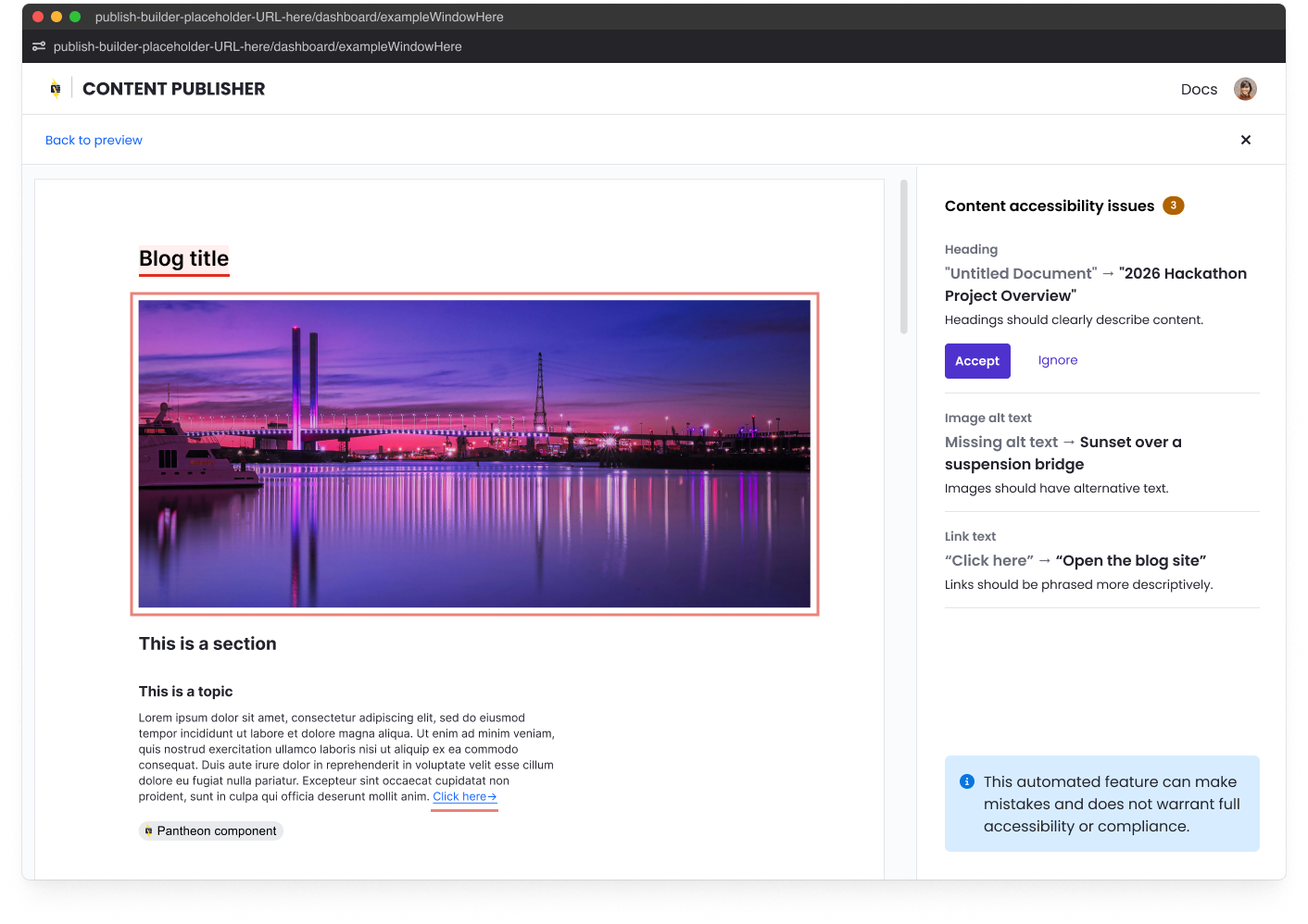
The quality assistant scans for these common content accessibility issues:
Issue Type | WCAG Level | What's Checked | Help Text Shown |
Images | 1.1.1 (A) | Missing/improper alt text, decorative images with alt text | "Images should have alternative text" |
Headings | 1.3.1, 2.4.6 (A/AA) | Skipped levels, multiple H1s, improper nesting | "Headings must be properly nested" |
Links | 2.4.4 (A) | Generic text like "click here", non-descriptive links | "Links should be phrased more descriptively" |
- Preview or publish your content - Click Preview and Publish in the Content Publisher Google Doc add-on, MS Word add-in or from the preview editor link from the content dashboard.
- Review issues - If issues are found, click the notification bar to see details.
- Fix in your Google Doc - Make recommended changes to your document.
- Publish - Proceed when ready.

This automated feature can make mistakes and does not warrant full accessibility or compliance.
This tool checks your content (what you write in Google Docs or Microsoft Word), not your website design or code (theme styling, color contrast, navigation menus, forms, interactive elements, etc.).
Resources for web accessibility: