Microsoft Word Add-in
The Content Publisher Microsoft Word add-in enables content creators to draft, format, and publish content directly from Microsoft Word (Desktop app and online) to their website. With this integration, teams can preview content, edit metadata, validate formatting and send for publishing without leaving their writing environment.
- Write, edit, collaborate, and publish from Microsoft Word (online and desktop app) to your website
- Preview how your content will look before it goes live
- Collaborative editing: Use comments, suggestions, and other collaboration features available on Microsoft Word for the Web
- Organize and structure your content
- Manage metadata fields with AI recommendations
- Manage publishing approval and workflow
In the Office Add-ins dialog, select My Add-ins tab. Type in “Pantheon Content Publisher” and click “Add.”
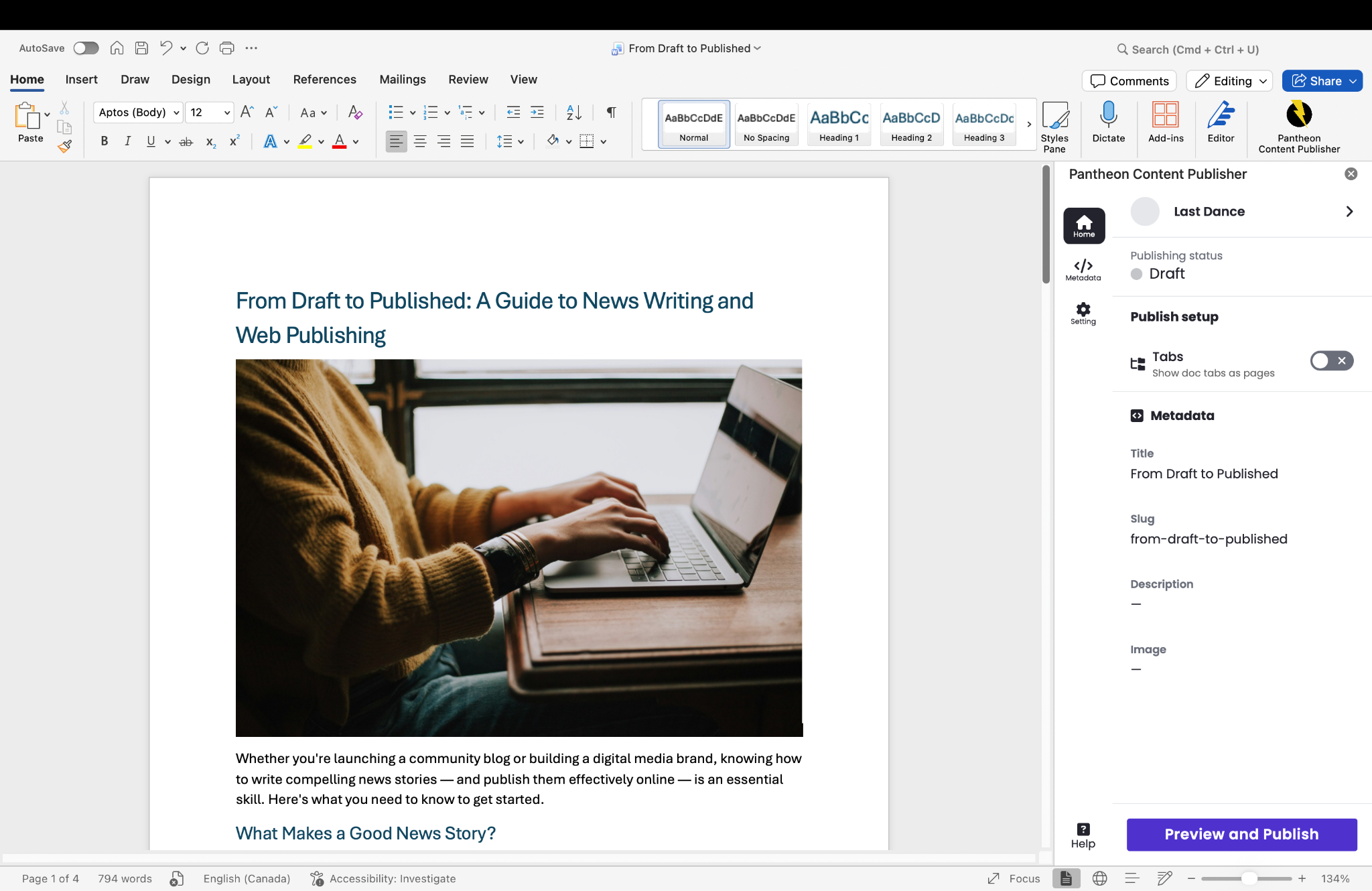
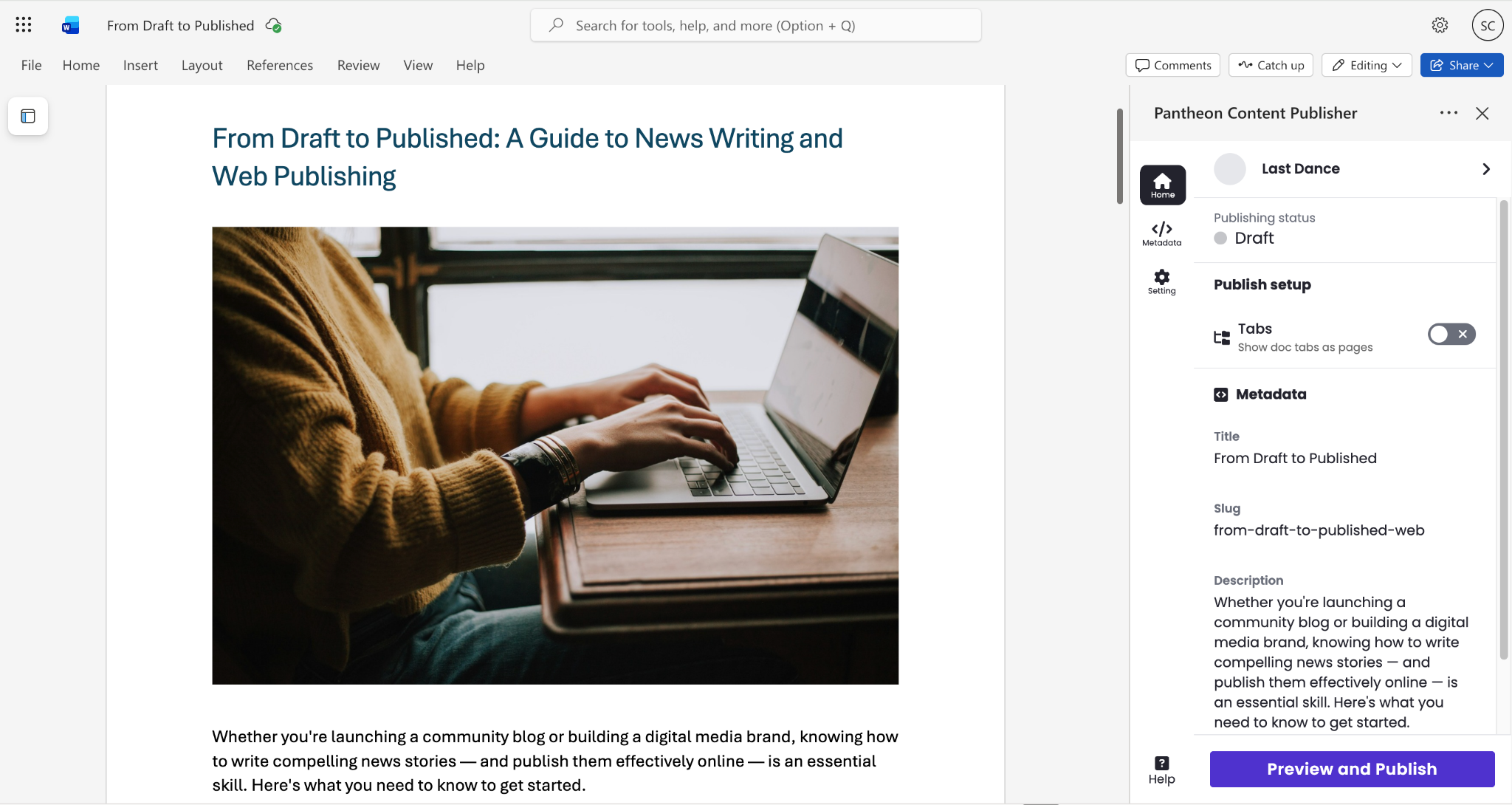
Before publishing, you must connect the document to a collection in Content Publisher. A collection is a folder-like location that has been set up and authenticated to publish documents to your website.
- First, navigate to a Microsoft Word document you’d like to publish or create a new document.
- Click on “Add-in” in the Microsoft Word toolbar.
- In the dropdown, select “Pantheon Content Publisher.”
- You will be prompted to allow Pantheon access to your workspace. Follow the prompts to allow the add-in to access your workspace.
- Select an existing collection if you or your team has already created one. Or, select playground to test Content Publisher on a prebuilt temporary test environment.
- If you selected Connect to Collection, use the drop-down and search filter to find and select your collection.
- Once selected, confirm you want to connect. A confirmation message will appear. You are ready to publish your document!
Change states of a given document from published to unpublished or vice versa.
Manage from the add-in where the given document is structured in the collection content tree. Learn more about the content structure.
Edit the metadata for the given document. You can also do this while publishing. Learn more on managing metadata.